You can connect any YouTube channel you own or manage, including channels on a Brand Account.
Connect it
Owners and Admins can connect accounts.
- In the sidebar, open Accounts and choose Connect account.
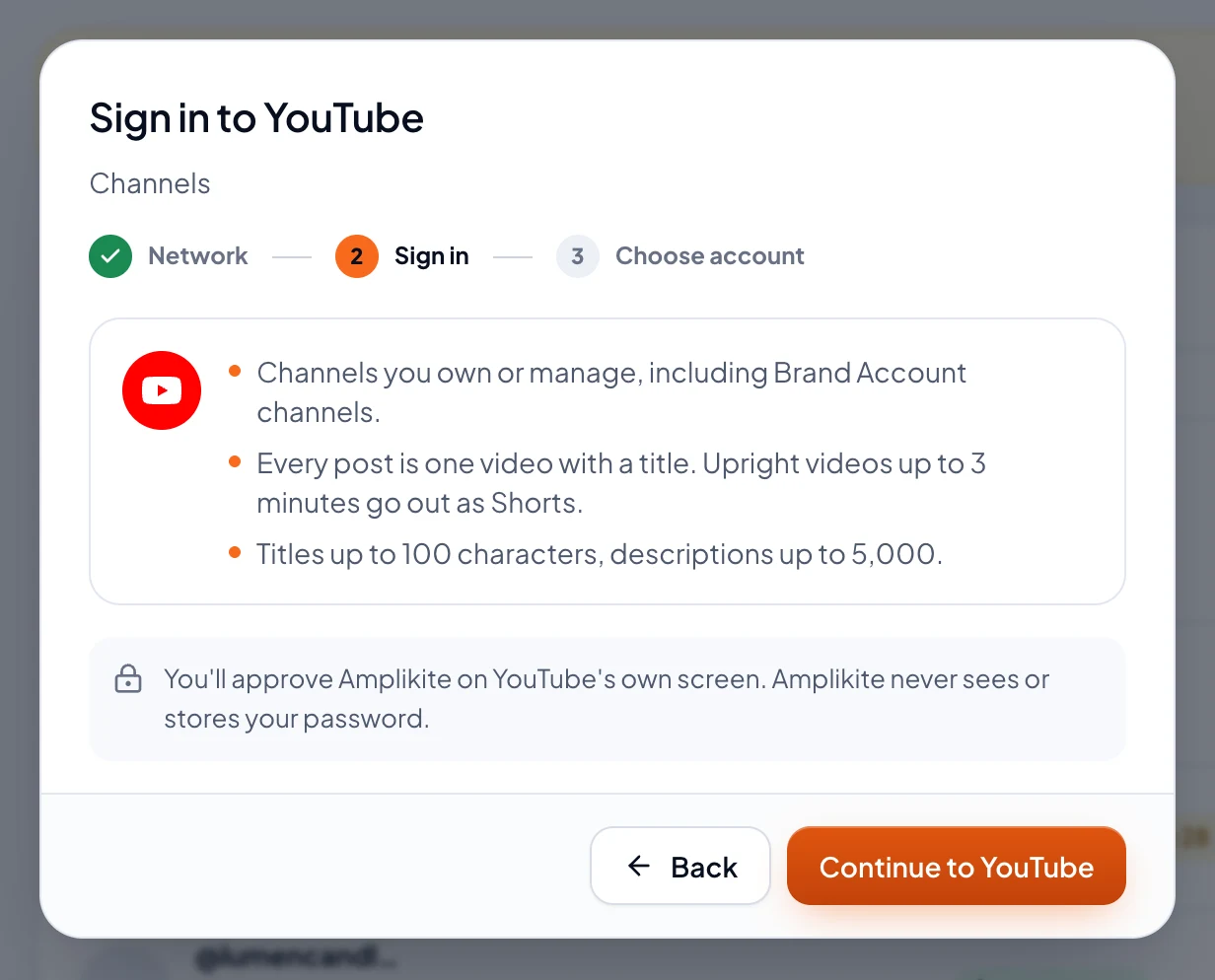
- Pick YouTube. Amplikite shows what YouTube allows before you sign in.
- Choose Continue to YouTube. On Google's screen, pick the Google account or Brand Account that runs the channel, and leave every box ticked: without them, Amplikite can't upload videos. Amplikite never sees or stores your password.
- Back in Amplikite, tick the channel to connect and choose Connect account. It's ready for your next post.
What to know
- Every YouTube post is one video with a title. Upright or square videos of 3 minutes or less go out as Shorts.
- Titles take up to 100 characters, and descriptions up to 5,000. Videos over 15 minutes need a channel that has verified its phone number.
- Once a video is out, Amplikite can change its title, description, tags, visibility and thumbnail, or delete it.
- Analytics shows the channel's views, likes, comments, shares and subscribers.
- By connecting YouTube, you agree to the YouTube Terms of Service.