Connect a Pinterest account, and every Pin you post goes on one of its boards.
Connect it
Owners and Admins can connect accounts.
- In the sidebar, open Accounts and choose Connect account.
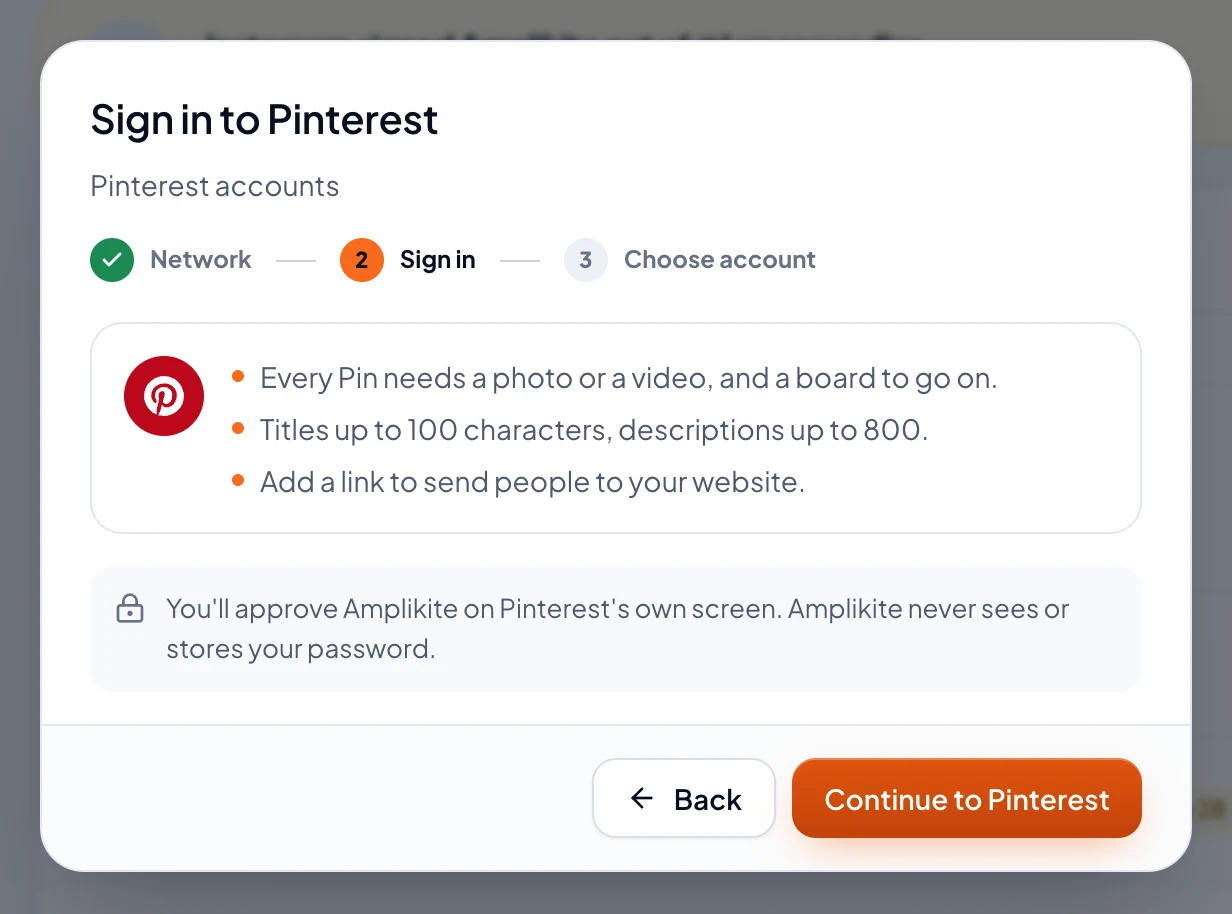
- Pick Pinterest. Amplikite shows what Pinterest allows before you sign in.
- Choose Continue to Pinterest. Sign in on Pinterest's own screen and allow Amplikite. Amplikite never sees or stores your password.
- Back in Amplikite, tick the account to connect and choose Connect account. It's ready for your next post.
What to know
- Every Pin needs a photo or a video, and a board to go on. You pick the board on the post's Pinterest tab, or make a new one there with New board.
- One photo makes a Pin, and 2 to 5 make a carousel. A Pin can be one video instead.
- Titles take up to 100 characters, and descriptions up to 800. Add a link to send people to your website.
- Once a Pin is out, Amplikite can change its board, title, description and link, or delete it.
- Analytics shows Pins' impressions, saves and clicks for business accounts. Personal accounts don't share numbers.