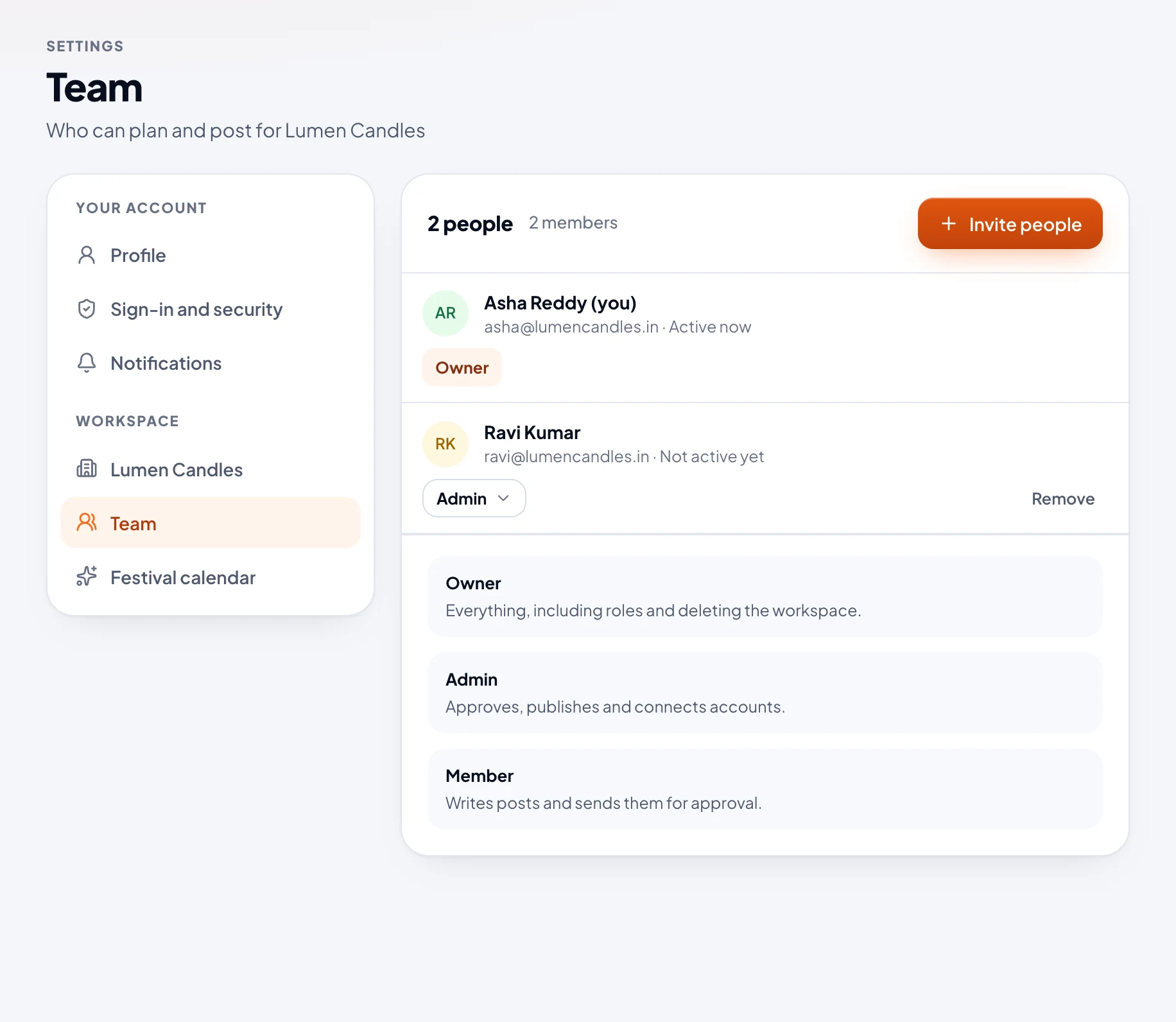
Owners and Admins can invite people, and there's no limit on how many.
Invite people
- In the sidebar, open Settings, then Team.
- Choose Invite people.
- Type their email addresses, separated by commas or new lines: up to 10 at a time.
- Pick their role. The Owner invites Admins or Members, and Admins invite Members. What each role can do.
- Choose Send invitation.
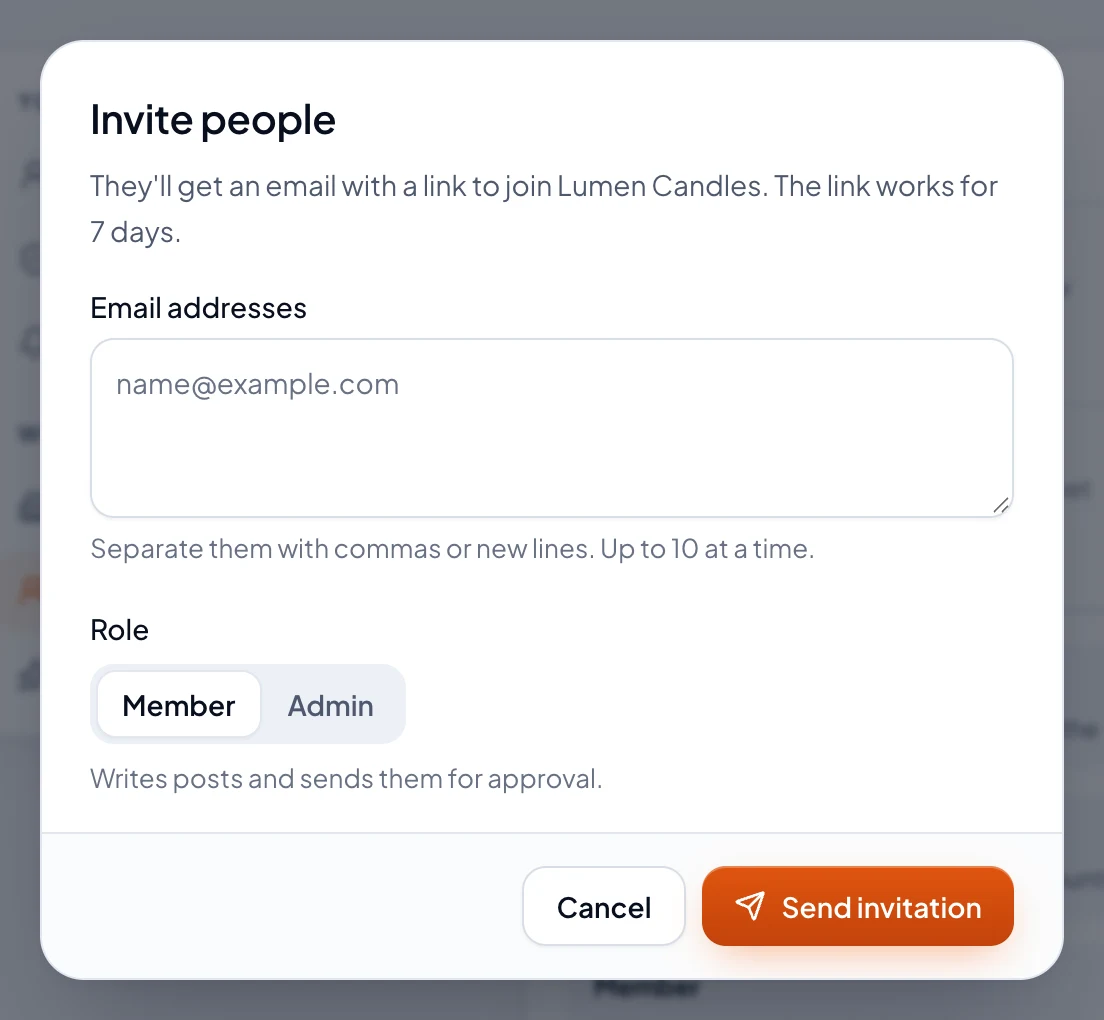
Each person gets an email with a Join button, which works for 7 days. Someone new makes their account right there, with no email to confirm. Someone with an account signs in, and they're in.
Invitations not accepted yet
They're listed on the Team page. Resend sends the link again, working for another 7 days. Cancel stops it working. Only the Owner can resend or cancel an invitation to be an Admin.
Change someone's role, or remove them
- The Owner changes a person's role from the menu on it, on the Team page.
- Remove takes someone out of the workspace straight away. The posts and drafts they wrote stay, and their scheduled posts still go out. The Owner can remove anyone, and Admins can remove Members.