With the workspace's Approvals switch on, a Member's post doesn't go out until an Owner or Admin says OK. It's on to start with. Owners and Admins turn it off in Settings, on the workspace's page: then Members schedule and publish their own posts.
Send a post for approval
A Member writes the post, picks a time and chooses Send for approval. It's In review until someone decides. Owners and Admins can send their own posts for approval too, for a second pair of eyes.
Review it
Owners and Admins open Approvals in the sidebar. The number next to it is how many posts are waiting.
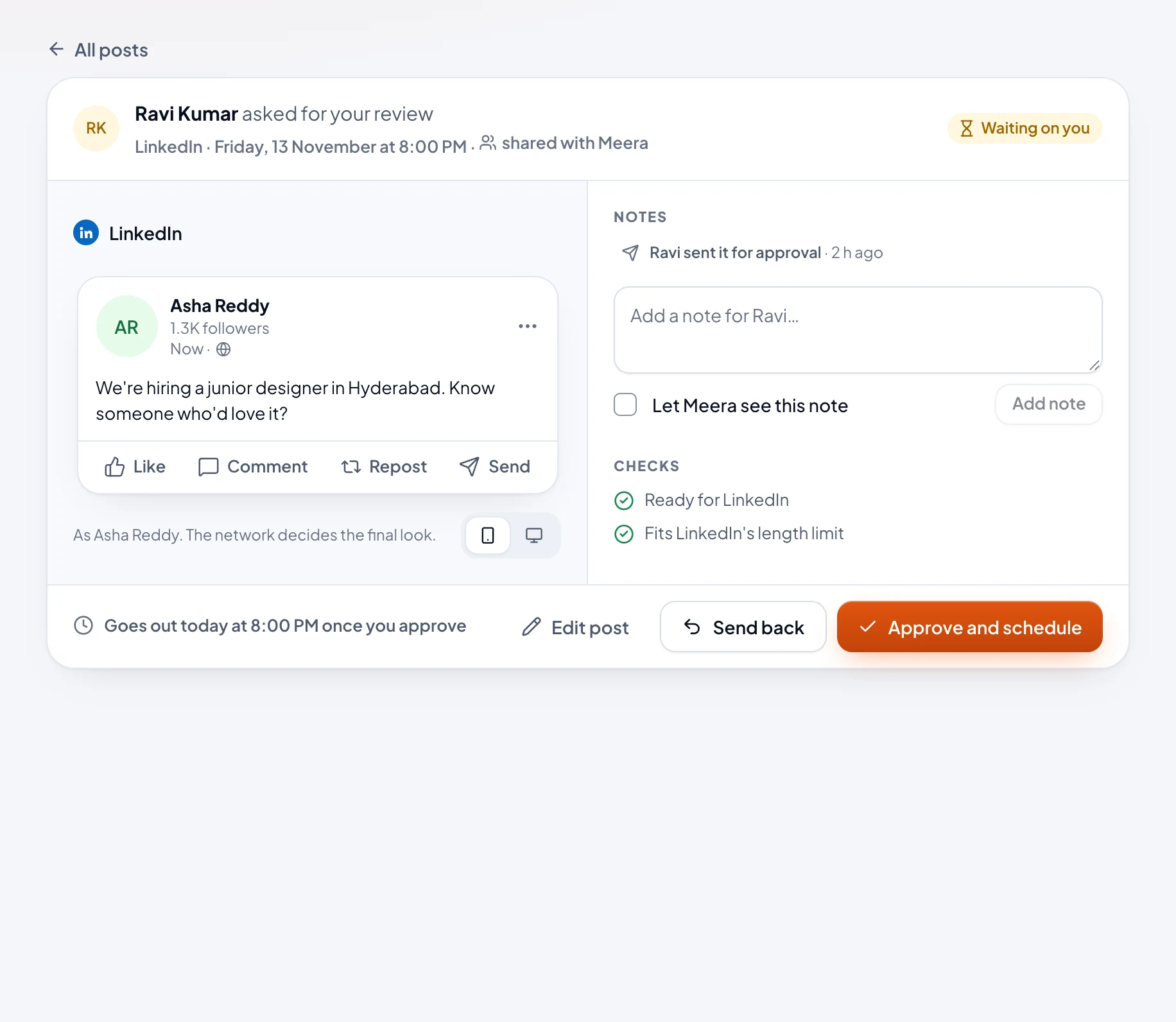
- Pick a post from the list. You see it as each network will, with its checks.
- Choose Approve and schedule: it goes out at its time. Or choose Send back, and say what needs changing.
Anyone can leave a note on a post with Add note. Notes stay inside the team, unless you tick Let … see this note to show it to the client too.
When it's sent back
The post's writer gets an email and sees the notes. They choose Make the changes, change the post and save it, which sends it back for approval. An Owner or Admin can also approve a sent-back post as it is, with Approve as it is.
If its time has passed
Nothing goes out late by itself. Approving a post whose time has passed asks you to Pick a new time. Otherwise it waits as Approved, marked Needs a new time, until someone moves it.
| The tab | What's in it |
|---|---|
| In review | Posts waiting for a decision |
| Sent back | Posts with changes asked for |
| Approved | Posts approved, and when they go out |