Open your name at the top right, then Profile, then Sign-in and security in the menu on the left.
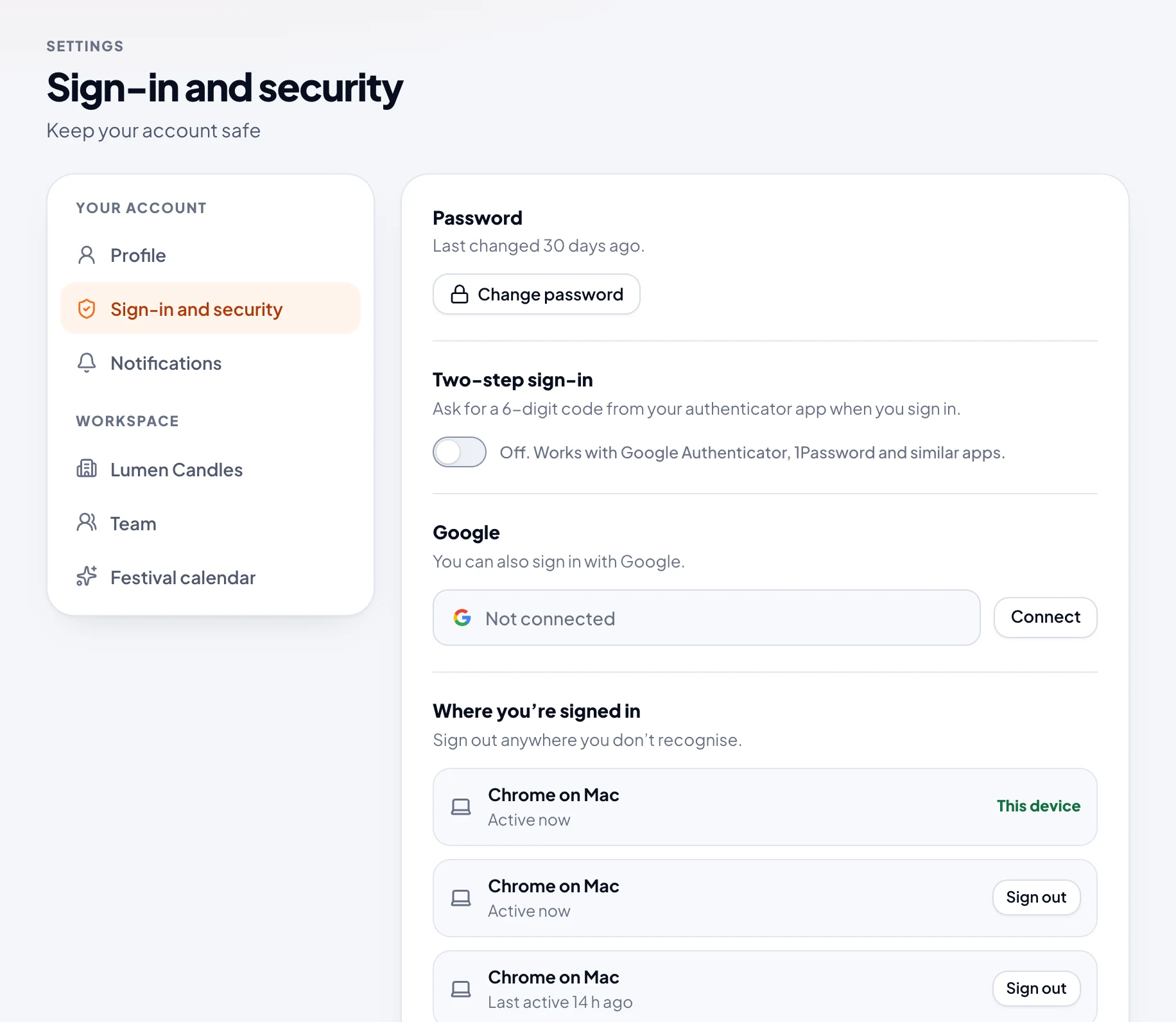
Change your password
- Choose Change password.
- Type your current password, then a new one of at least 8 characters, twice.
- Choose Change password.
Any other device signed in to your account is signed out, and we email you to say it changed.
Forgot it?
On the sign-in page, choose Forgot password?. The link we email works once, for one hour, and only the newest link works. Using it signs you out everywhere else. It doesn't turn off two-step sign-in.
Signed up with Google?
To sign in with your email too, choose Email me a link next to Password, and choose a password from the email. The link works for one hour.
Connect or disconnect Google
- Connect: choose Connect next to Google, and pick the Google account with the same email as your Amplikite account.
- Disconnect: choose Disconnect. You need a password first, so you can still get in. After that, Continue with Google tells you to sign in with your email and password, until you connect Google again.